
Wireless charging is supposed to be easy. You place your phone on the charger, see the charging icon appear, and carry on with your day. So when nothing happens—or charging keeps starting and stopping—it can be pretty frustrating.
The good news is that a wireless charger not working doesn’t always mean it’s broken. More often than not, the problem is something simple, like your phone’s position, its case, or the power adapter.
Before replacing anything, work through these eight common causes and fixes.
1. Your Phone Isn’t Lined Up Correctly
Wireless charging relies on two coils: one inside the charger and one inside your phone. They need to line up closely enough to transfer power. If your phone is sitting too high, too low, or slightly off-center, charging may not begin.
This can also explain why your phone starts charging for a second and then suddenly stops.
Try this:
Place your phone in the center of the charging area, then slowly move it a little in each direction. Give it a few seconds in every position and watch for the charging icon, sound, vibration, or indicator light.
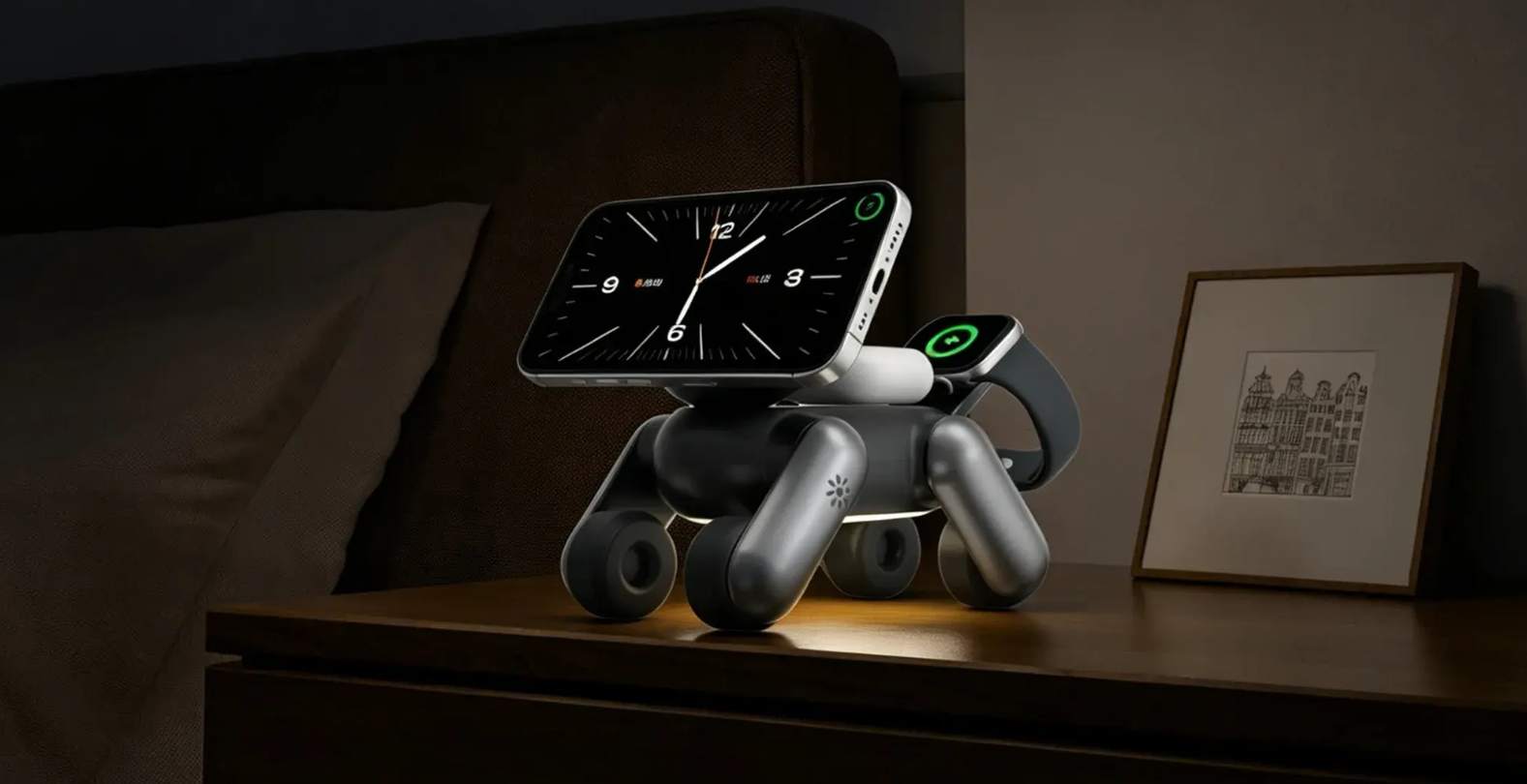
If you’re using a 3-in-1 charger, remember that each device usually has its own spot. Make sure your phone, smartwatch, and earbuds are sitting in their correct charging areas.
2. The Power Adapter Isn't Strong Enough
Although it’s called wireless charging, the charger itself still needs to be connected to a cable and power adapter. If that adapter doesn’t provide enough power, the charger may work slowly, stop unexpectedly, or fail to charge at all.
An underpowered adapter can sometimes turn on the indicator light, which makes everything look normal, even though the charger isn’t getting enough power to charge your device properly.
This is even more important with a 3-in-1 charger because powering several devices at once requires more input than charging a phone by itself.
Try this:
Reconnect the cable at both ends.
Plug the adapter directly into a wall outlet.
Try another outlet.
Check the cable for loose or damaged connectors.
Use an adapter that meets the charger's power requirements.
Avoid using a low-output computer USB port.
If none of the devices on your charging station work, the adapter or input cable is the best place to start.
3. One of Your Devices Isn’t Compatible
Not every phone supports wireless charging, and different types of devices may use different charging systems.
Smartwatches are a common source of confusion. A charging area made for one watch family may not work with another, even though both watches support some form of wireless charging. Earbuds can be similar: the earbuds themselves may be compatible, but their case must also support wireless charging.
Try this:
Check the compatibility information for your exact phone, smartwatch, or earbuds model. Don’t rely only on the brand name.
For earbuds, make sure you have the wireless charging version of the case. For a smartwatch, confirm that the charging holder supports that specific model.
4. Your Phone Case Is Getting in the Way
Many slim phone cases work perfectly well with wireless chargers. However, thick cases and certain accessories can create too much distance between your phone and the charger.
Metal plates, wallet attachments, cards, phone rings, grips, and kickstands can also interrupt charging. Even a magnetic case may cause problems if its magnets aren’t designed and positioned for wireless charging.
Try this:
Take your phone completely out of its case and remove any accessories attached to the back. Then place the bare phone on the charger.
If it begins charging normally, you’ve found the problem. Try the case again without the extra accessories, or switch to a slimmer case designed for wireless charging.
Also, never leave coins, keys, credit cards, or loose metal objects between your phone and the charger.

5. The Charging Surface Needs Cleaning
A little dust usually won’t stop wireless charging, but built-up debris can prevent your phone from lying flat. Metal fragments or other foreign objects may also trigger the charger’s safety system.
If your charger has a blinking light, it could be trying to tell you that something is interfering with charging.
Try this:
First, unplug the charger. Remove your phone and any other items sitting nearby. Wipe the charging surface and the back of your phone with a clean, dry microfiber cloth.
Once everything is clean and completely dry, reconnect the charger and try again.
Avoid spraying cleaner directly onto the charger, and don’t use metal tools to remove debris.
6. Your Phone or Charger Is Too Hot
It’s normal for a phone to feel slightly warm during wireless charging. However, if it becomes too hot, charging may slow down or stop temporarily to protect the battery.
Heat can build up when the phone is badly aligned, covered by a thick case, left in direct sunlight, or running demanding apps. Soft surfaces such as beds and sofas can also trap heat around the charger.
Try this:
Remove the phone from the charger and let both devices cool down. Take off the case and move the charger to a hard, flat surface with good airflow.
It also helps to close games, videos, and other demanding apps while charging. Once the phone has cooled, place it back on the charger and check the alignment carefully.
If the charger becomes extremely hot, smells burnt, changes color, or shows visible damage, unplug it and stop using it.
7. Your Phone Needs a Restart or Update
Sometimes there’s nothing physically wrong with the charger. Your phone may simply have a temporary software issue that prevents it from recognizing the wireless connection.
Battery-management features can also pause charging at a certain percentage. For example, if your phone stops near 80%, it may be protecting the battery rather than experiencing a charging failure.
Try this:
Restart your phone and check for available system updates. You can also review its optimized-charging or battery-protection settings.
If the problem began immediately after an update, check whether another software update is available. Manufacturers sometimes release follow-up fixes for charging and battery issues.
There’s usually no reason to perform a factory reset at this stage. It erases your data and is unlikely to fix damaged charging hardware.
8. The Charger, Cable, Adapter, or Phone Is Damaged
If you’ve tried everything above and wireless charging still doesn’t work, one of the components may be faulty.
The problem could be a worn cable, damaged adapter, faulty charger, cracked phone back, or internal damage caused by a drop.
The easiest way to narrow it down is to test one part at a time.
Try this:
- Test your phone with another compatible wireless charger.
- Test your charger with another compatible phone.
- Try another suitable cable and adapter.
- On a 3-in-1 charger, test each charging area separately.
If another phone charges normally, the issue is probably with your phone or case. If nothing charges, the cable, adapter, or charger may be the cause.
If your phone looks swollen, feels unusually hot, or has a screen or back panel lifting away from the frame, stop charging it immediately. Turn it off and have it inspected by a qualified technician, as a swollen battery can be dangerous.
Share:
how to apply iPad screen protector
iPhone 18 Release Date: What to Know Before You Buy Accessories